
In the family group chat, someone asks: “Who sent something for Mom this week?” Three people answer at once, and nobody is sure.
Supporting family back home is often a team effort, but keeping everyone on the same page usually means screenshots, scrolling, and “I think I already sent that.”
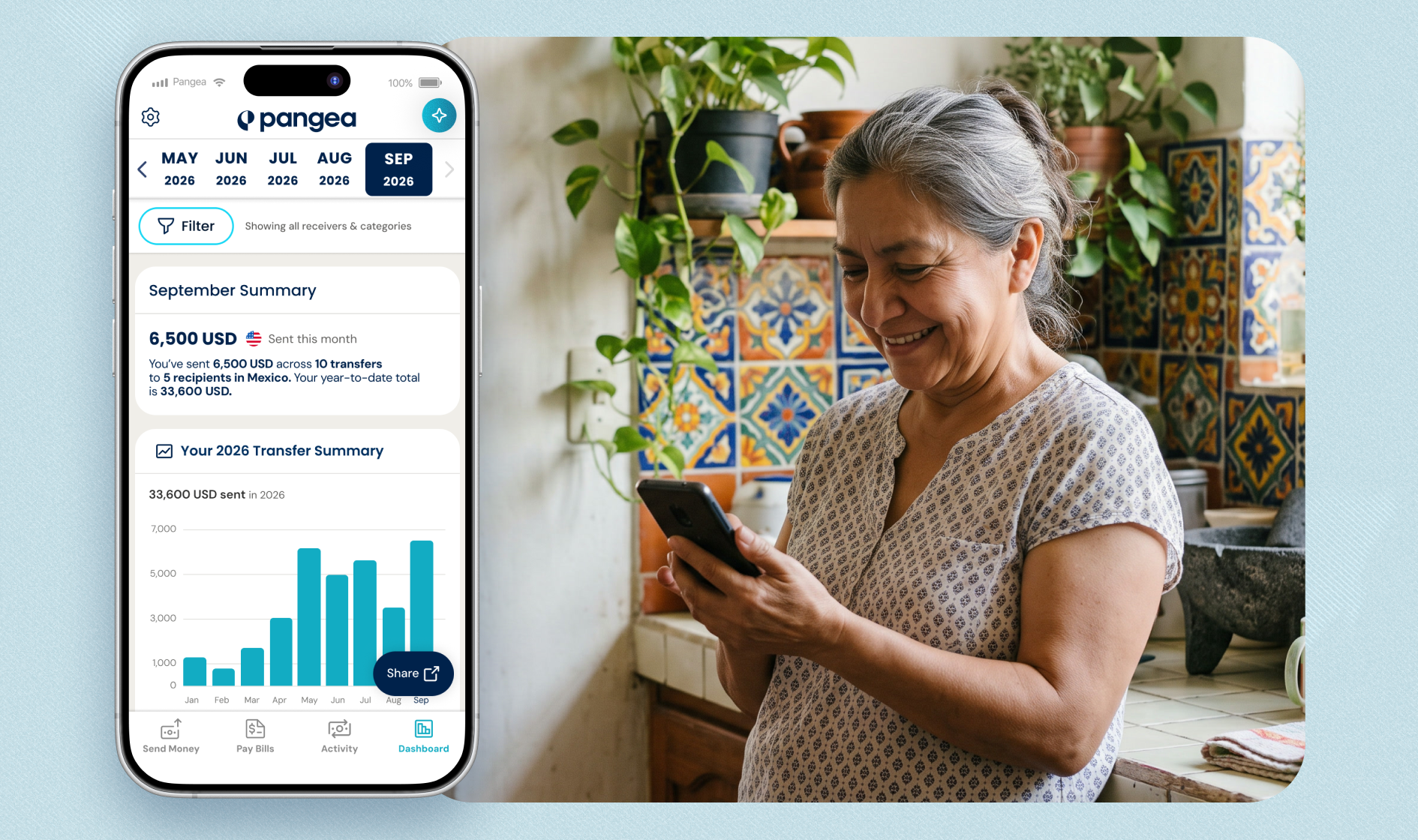
Your Dashboard already brings your transfers together in one clear view. Now you can decide who else gets to see it.
That’s why we’re introducing Share Dashboard.
Share Your Dashboard in a Few Taps
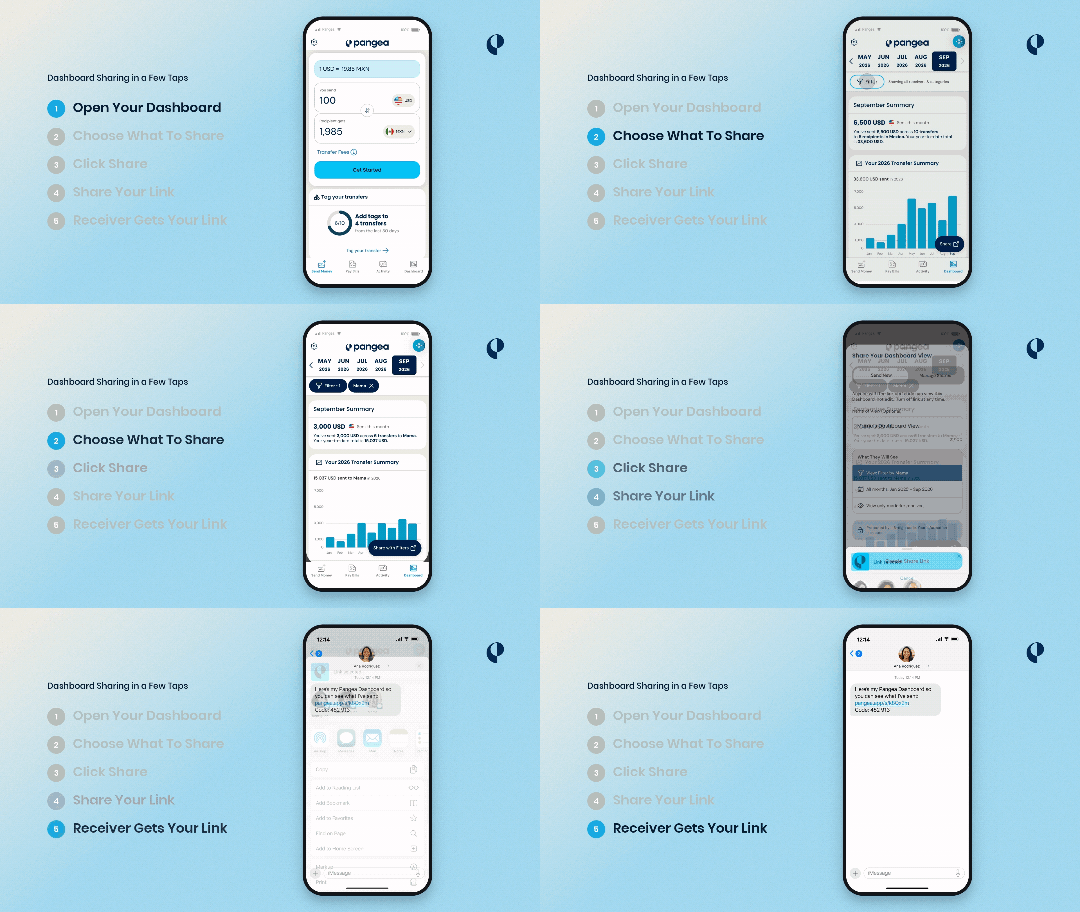
Sharing starts from your Dashboard:
- Tap Share. The first time, a short intro screen walks you through how it works.
- Review your view. On the Share Your Dashboard View screen, you can give the view a name (optional) and see exactly what the person you share with will see before anything is created.
- Tap Create Share Link. The next screen shows your 6-digit access code and a preview of the message you’re about to send.
- Send it your way. Share through WhatsApp, Email, or any way that is convenient for you and your receiver.
What the Person You Share With Sees
They open the link, enter the 6-digit code from your message, and tap Open Dashboard. They only enter the code once, and they don’t need a Pangea account.
From there, they can browse your Dashboard month by month. The link is live, so they see your updates in real time, anytime they open it. It’s view-only: they can’t change, send, or spend anything. And you can deactivate the link whenever you want.
Share Everything, or Just What You Choose
- You decide how much the person you share with can see:
- Your whole Dashboard: They see all the receiver names and amounts in the view, along with your transfer history.
- Just one slice: Apply a Dashboard filter first (for example, only your transfers to Mom) and the Share button becomes Share with Filters. The person you share with sees only that slice, marked Filtered by the filter you chose, and they can’t widen it.
A good rule of thumb: if you only want to show one person’s transfers, share with a filter. The Share Your Dashboard View screen always shows what the person will see before you create the link.
You Stay in Control
- It updates on its own. The shared Dashboard updates automatically, so the person sees your new activity the next time they open the same link. No need to send it again.
- Need to change what you share? Send a new link. Shared views can’t be edited after you send them. You can turn a link on or off, and if you want to share something different, like another filter, create and send a new link.
- Manage everything in one place. Tap Share on your Dashboard, and once you’ve shared before, you’ll land on Manage Shares. Each shared view shows its name, whether it includes all your data or a filter, and whether it’s Active or Inactive. From there, you can Re-share Code to send the access code again, make a view inactive, or send a new link.
- Turn it off anytime. Making a view inactive ends the person’s access immediately.
Share With People You Trust
Anyone who has both the link and the code can open the shared view, so share it with people you trust. You decide who receives them: Pangea never sends your link to anyone on your behalf.
Shared views show high-level transfer details, such as receiver names and amounts. Your personal information and payment details are never shared.
Learn more about how Pangea protects your information in our Privacy Policy.
Try It Today
- Open your Pangea app (make sure you’re on the latest version).
- Go to your Dashboard.
- Tap Share. Want to show just one slice? Apply a filter first.
Your Dashboard has always shown you how your support adds up. Now you decide who else gets to see it.
Frequently Asked Questions (FAQs)
Does the person I share with need a Pangea account?
No. They open the link, enter the 6-digit code, and tap Open Dashboard.
Can they change anything or send money from my Dashboard?
No. A shared view is view-only. They can’t change, send, or spend anything.
Can I share just one person’s transfers?
Yes. Apply a Dashboard filter first (for example, only transfers to Mom), then tap Share with Filters. The person you share with sees only that slice and can’t widen it.
Will the person I share with see my other receivers?
If you share your whole Dashboard, yes: they see all receiver names and amounts in the view. To limit what they see, share with a filter.
If I send more transfers, do I need to send the link again?
No. The shared Dashboard updates automatically, so they see your new activity the next time they open the same link. Create a new link only if you want to change what’s shared, such as a different filter.
Can I edit a link after I send it?
Not currently. You can turn a link on or off. To change what’s shared, create and send a new link.
How do I stop sharing?
Tap Share, open Manage Shares, and make that view inactive. Their access ends immediately.
Can the person I share with pass the link along?
Anyone who has both the link and the code can open the shared view, so share only with people you trust. You can turn the view off anytime.
DISCLAIMER – This content is for informational purposes only. Pangea and its affiliates do not provide financial, legal, investment or tax advice.