
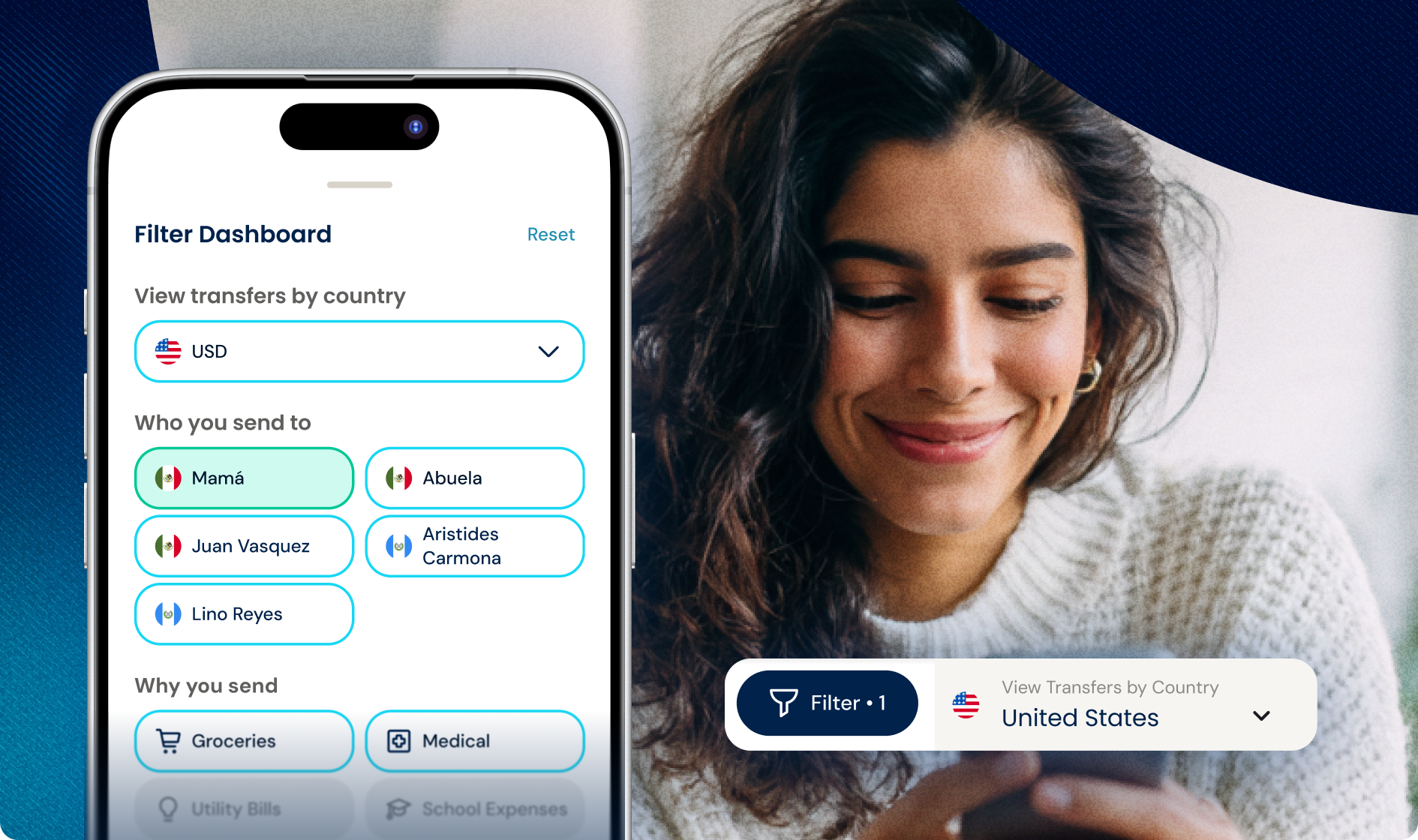
It’s the end of the month, and you’re sitting down to review your budget.
You paid Mom’s rent on the 3rd. Midway through the month, your sister needed help with school fees. Last week, an unexpected medical bill came up, and because you were already sending, you added a little extra for household groceries.
Now you need a concrete number: How much have you actually sent for school expenses this year?
If you’re like most senders supporting loved ones back home, the answer is usually trapped between memory, bank records, and saved screenshots. You open your transfer list and start scrolling: rent, groceries, tuition, medical, rent again. Every send made perfect sense in the moment, but together, the numbers blur.
Most transfer apps stop caring the moment your money is delivered. Pangea keeps working after the money arrives.
To help you stay in control of your ongoing support, we’re introducing Dashboard Filters.
Sort It Out in a Few Taps
Dashboard Filters let you isolate the exact numbers you need without pulling out a calculator or digging through receipts. You can filter your view in three simple ways:
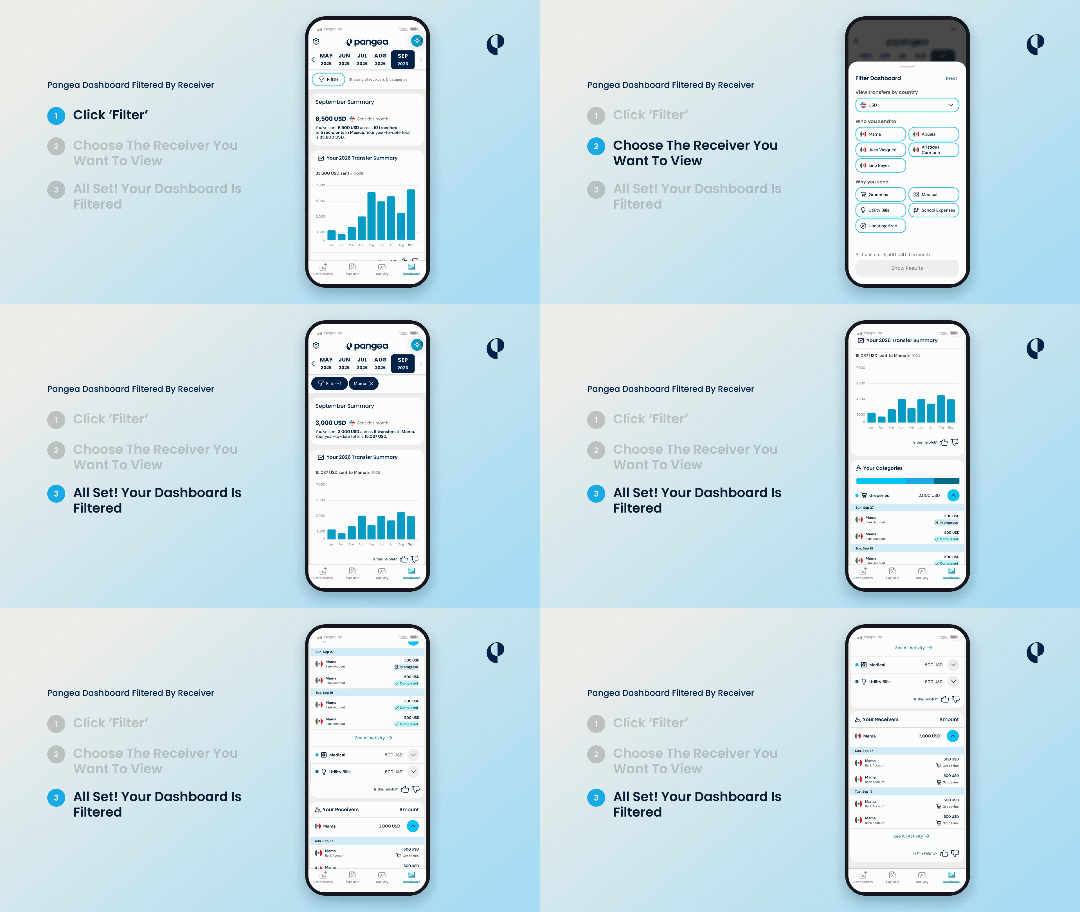
- All support for one person: Filter by Receiver to see everything you have sent to that person across all dates and needs.
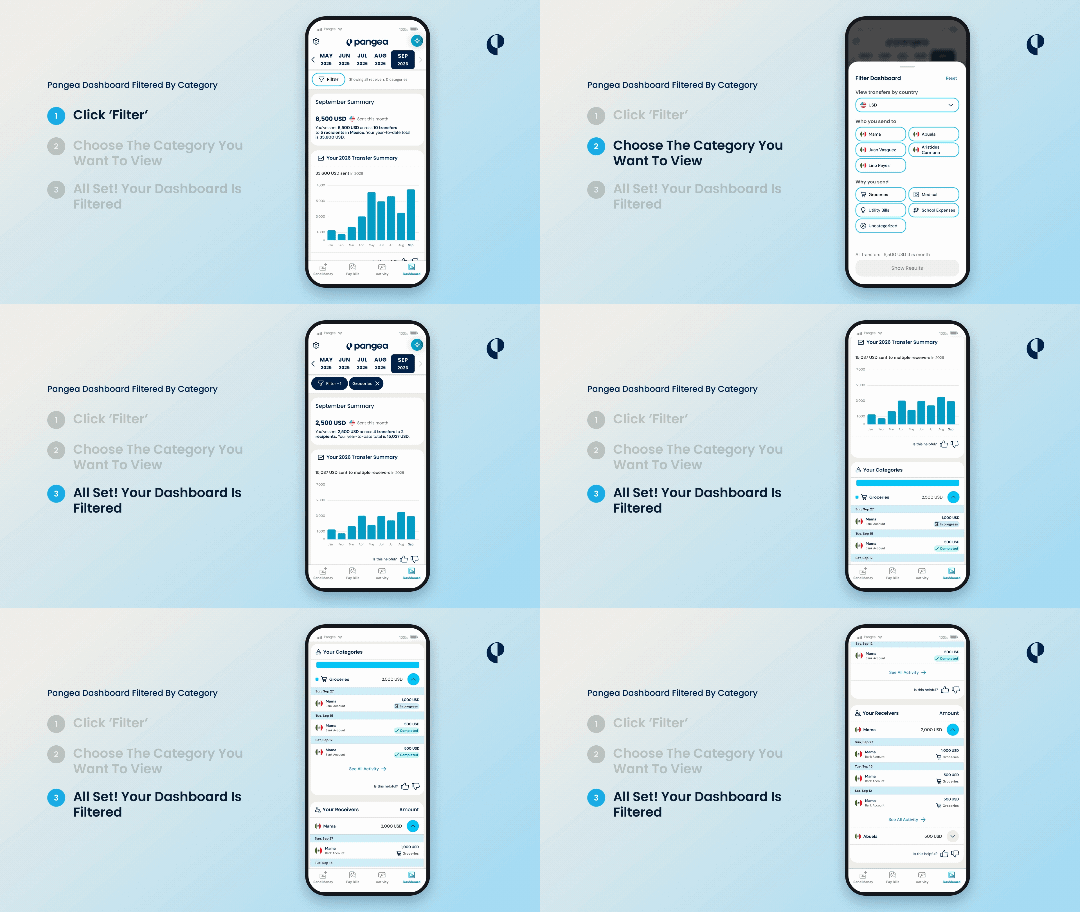
- One expense across everyone: Filter by Tag (like School Expenses or Groceries) to see the combined total sent for that specific purpose.
- A specific commitment: Combine Receiver + Tag to pinpoint exactly what you sent one person for one reason.
Select your choices, tap Show Results, and your summary updates instantly. You can also tap any tag or receiver to inspect the individual transfers behind the total. When you want the complete overview back, simply tap Reset.
Make It Yours with Custom Tags
Remittance categories shouldn't be one-size-fits-all. If your family expenses don't fit standard tags like Groceries or Medical, you can easily make your own:
- Create in seconds: Name your tag (such as Home Construction, Car Payment, or Emergency Fund) and pick an icon.
- Retroactive updates: Rename or edit a tag anytime; the change automatically updates across all past transfers with that tag.
- Completely private: Custom tags and filters are strictly for your eyes to manage your budget; your receiver never sees them.
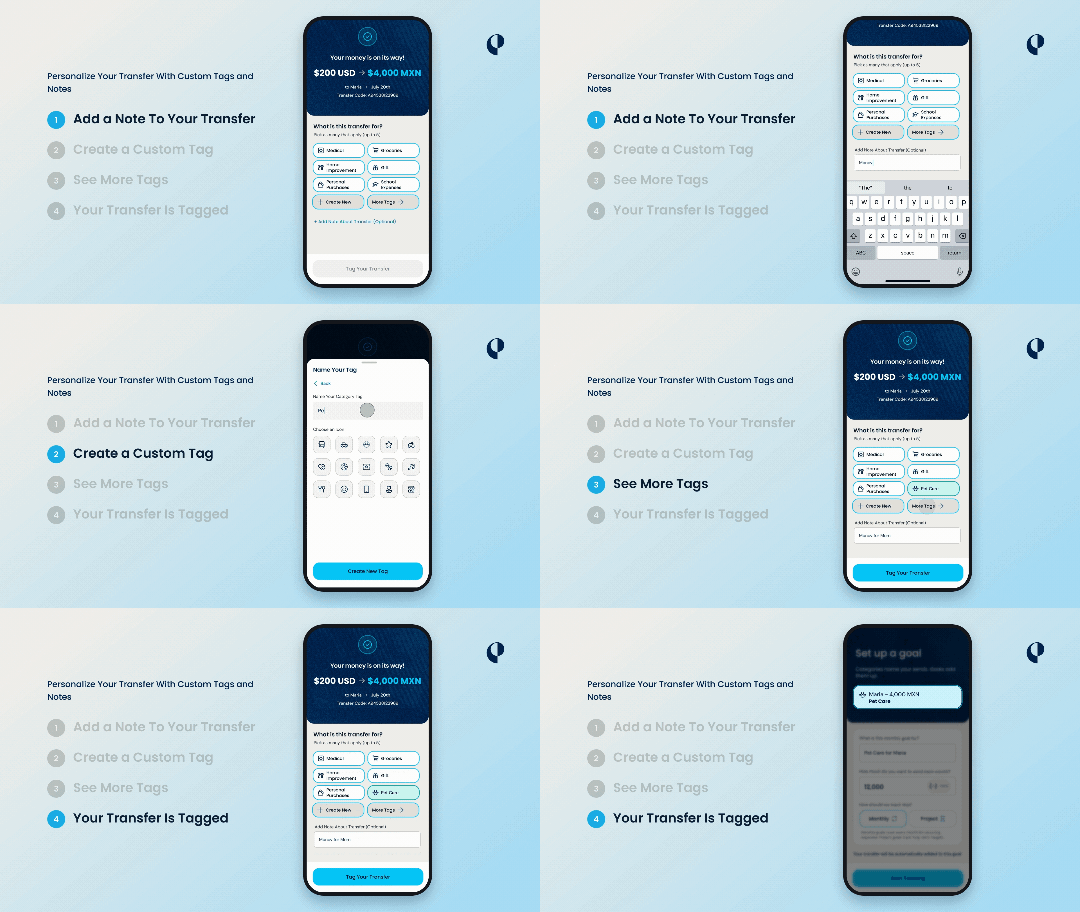
See how to create a custom tag right after completing a transfer.
Just for You, Always Optional
Filters only change how you organize what you see on your Dashboard. They don't change how your transfers work: your exchange rates, transfer speeds, delivery options, and fees remain exactly the same. They are simply a smart lens for your Dashboard, there whenever you need a clearer look at where your money goes.
Try It Today
- Open your Pangea app (ensure you are on the latest version).
- Navigate to your Dashboard.
- Tap Filter in the top corner to organize your picture.
Your Dashboard has always shown you the big picture. Now it shows you the exact details that matter.
DISCLAIMER – This content is for informational purposes only. Pangea and its affiliates do not provide financial, legal, investment or tax advice.